> ## Documentation Index
> Fetch the complete documentation index at: https://docs.creator.fun/llms.txt
> Use this file to discover all available pages before exploring further.
# Conversations
> Message other users directly and join token-based chatrooms to connect with your community on Creator.fun.
Conversations on Creator.fun brings two kinds of messaging together in one place: private direct messages with any user on the platform, and token chatrooms where holders gather to discuss their favorite coins. Head to the **Chat** page from the main navigation to get started.
 You must be signed in to send or receive any messages. If you aren't logged in, the Chat page will prompt you to sign in before you can access any conversations.
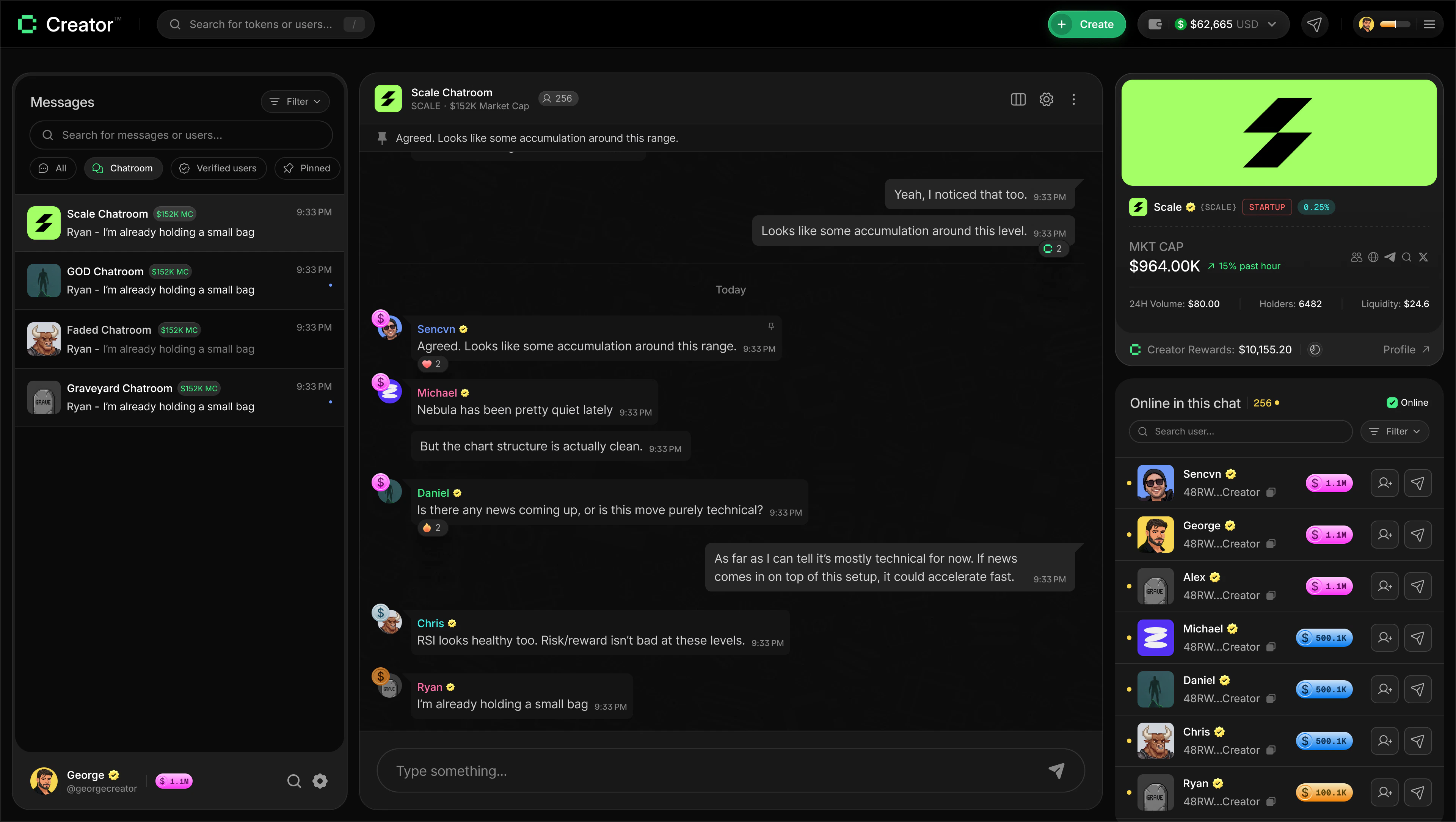
The Chat page uses a three-panel layout on desktop:
* **Left panel** — your conversations list, showing both direct messages and chatrooms you've joined, with filters and search.
* **Center panel** — the active chat, where messages appear and you can type your reply.
* **Right panel** — details about the person or chatroom you have open, including token stats for chatrooms.
***
## Direct messages
Direct messages let you have a private, one-on-one conversation with any user on the platform. Your full message history is saved, and you can search across all your past conversations using the search bar in the left panel.
### Filtering your inbox
The left panel gives you four quick filters to cut through noise in a busy inbox:
* **All** — every conversation in one view.
* **Chatroom** — only token chatrooms, no DMs.
* **Verified users** — direct messages from verified creators only.
* **Pinned** — conversations you've pinned to the top.
You can also use the **Filter** button to narrow results by wallet balance, trading volume, or Creator Rank — useful when you want to find messages from high-volume traders or top-ranked creators.
### How to send a direct message
Click **Chat** in the main navigation. The left panel shows your existing conversations.
At the top of the left panel, toggle to **User Search**. A search interface opens in the center panel where you can discover other users.
Type a username into the search bar, or use the filter pills — **Trending**, **New**, **Top Traders**, **Verified** — to browse users. You can also apply advanced filters for wallet balance, trading volume, and Creator Rank to find specific people.
Click a user from the results. Their conversation thread opens in the center panel and a new direct message thread appears in your left panel list.
Click the message input at the bottom of the center panel, type your message, and press **Enter** or click the send button.
### Managing direct messages
Hover over any conversation in the left panel to reveal quick actions:
* **Pin** — keeps the conversation at the top of your list.
* **Delete** — removes the conversation from your list.
* **Unblock** — if you previously blocked a user, this restores the thread.
You can also block or delete a conversation from the three-dot menu at the top of any active chat.
## Token chatrooms
Every creator coin on Creator.fun can have its own chatroom — a shared space where token holders come together to discuss the project, share updates, and connect as a community. Chatrooms appear alongside your direct messages in the left panel.
You must be signed in to send or receive any messages. If you aren't logged in, the Chat page will prompt you to sign in before you can access any conversations.
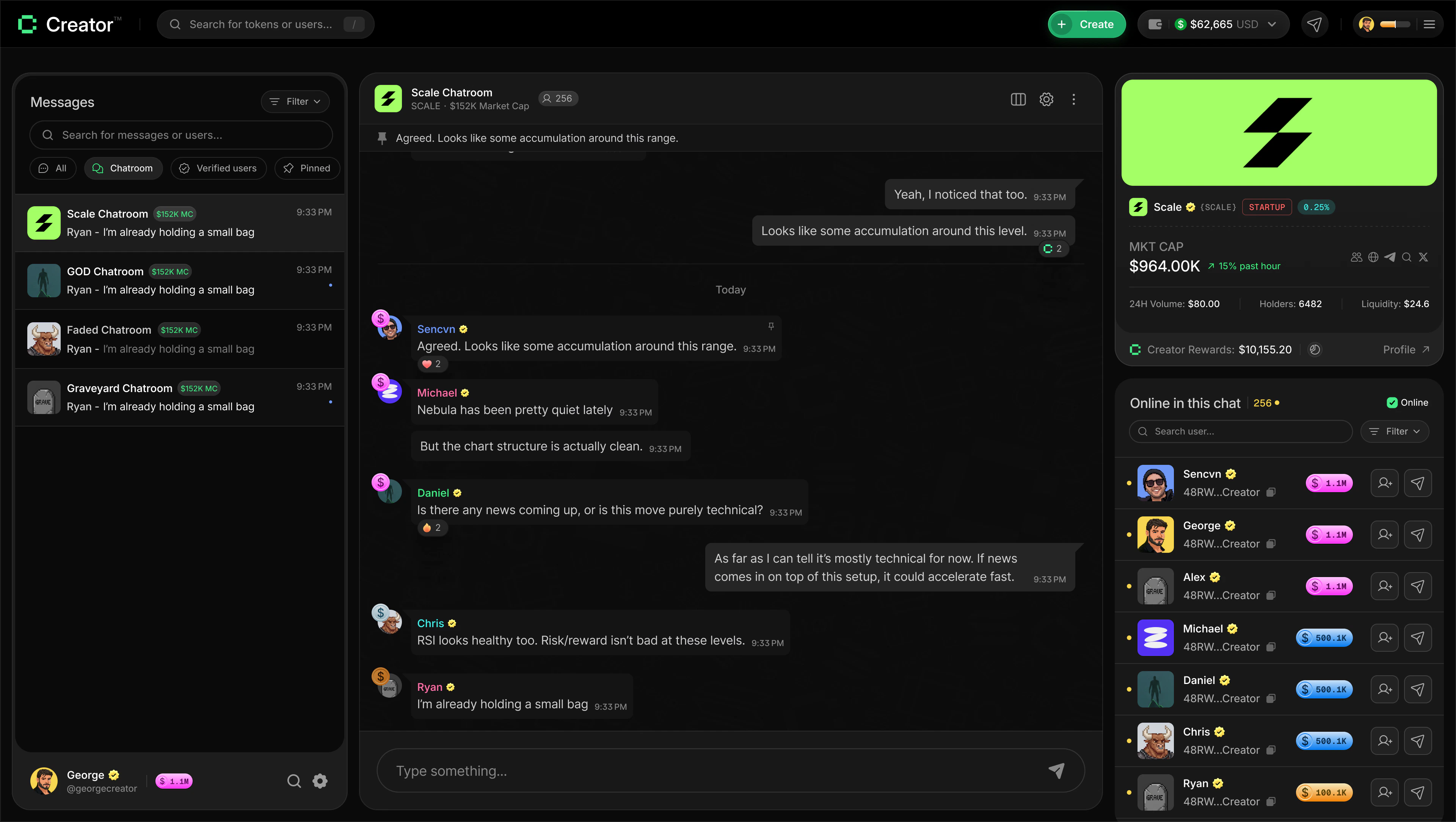
The Chat page uses a three-panel layout on desktop:
* **Left panel** — your conversations list, showing both direct messages and chatrooms you've joined, with filters and search.
* **Center panel** — the active chat, where messages appear and you can type your reply.
* **Right panel** — details about the person or chatroom you have open, including token stats for chatrooms.
***
## Direct messages
Direct messages let you have a private, one-on-one conversation with any user on the platform. Your full message history is saved, and you can search across all your past conversations using the search bar in the left panel.
### Filtering your inbox
The left panel gives you four quick filters to cut through noise in a busy inbox:
* **All** — every conversation in one view.
* **Chatroom** — only token chatrooms, no DMs.
* **Verified users** — direct messages from verified creators only.
* **Pinned** — conversations you've pinned to the top.
You can also use the **Filter** button to narrow results by wallet balance, trading volume, or Creator Rank — useful when you want to find messages from high-volume traders or top-ranked creators.
### How to send a direct message
Click **Chat** in the main navigation. The left panel shows your existing conversations.
At the top of the left panel, toggle to **User Search**. A search interface opens in the center panel where you can discover other users.
Type a username into the search bar, or use the filter pills — **Trending**, **New**, **Top Traders**, **Verified** — to browse users. You can also apply advanced filters for wallet balance, trading volume, and Creator Rank to find specific people.
Click a user from the results. Their conversation thread opens in the center panel and a new direct message thread appears in your left panel list.
Click the message input at the bottom of the center panel, type your message, and press **Enter** or click the send button.
### Managing direct messages
Hover over any conversation in the left panel to reveal quick actions:
* **Pin** — keeps the conversation at the top of your list.
* **Delete** — removes the conversation from your list.
* **Unblock** — if you previously blocked a user, this restores the thread.
You can also block or delete a conversation from the three-dot menu at the top of any active chat.
## Token chatrooms
Every creator coin on Creator.fun can have its own chatroom — a shared space where token holders come together to discuss the project, share updates, and connect as a community. Chatrooms appear alongside your direct messages in the left panel.
 Token chatrooms are **holders-only** by default. If you don't hold any of a token, you'll see a lock icon instead of a join button on that token's details page. Buy at least one token first, then come back to join the conversation.
When you're in a chatroom, the right panel shows live token details — including the ticker and market cap — so you always have context alongside the conversation.
### Pinned messages
Chatroom admins can pin important messages so they're visible to everyone who joins. A pinned message banner appears at the top of the chat. Click it to view the full list of pinned messages in that room.
### How to join a token chatroom
Find the token you're interested in from the dashboard or leaderboard, and click through to its details page.
Scroll down the token details page until you see the chatroom card. It shows the token's name, holder count, and whether the room is public or holders-only.
Click **Join Chatroom** if you're a holder but haven't joined yet. If you've already joined, click **View Chatroom** to jump straight into the conversation. If the room is locked, buy the token first.
The chatroom opens in the Chat page. Type your message in the input at the bottom and press **Enter** to send.
You can jump directly to any token chatroom from the token's details page — just scroll to the chatroom card and click **View Chatroom**. This is the fastest way to reach a specific community without searching through your conversations list.
***
## Creating a chatroom
If you've launched a creator coin on Creator.fun, you can create a dedicated chatroom for your holders. There's no chatroom until you set one up, so creating one is how you open up your community space.
Navigate to your own token's details page. You can find it from your profile or by searching on the dashboard.
Scroll down to the chatroom card on your token's details page. Instead of a **Join** button, you'll see a **Create Chatroom** button because you're the token creator.
Click **Create Chatroom** and follow the setup dialog. Once created, the chatroom becomes visible to all your token holders, who can join directly from this same card.
As the creator and admin, you have extra controls in the chat header: a **Settings** icon lets you manage the room, and you can pin messages, mute users, or remove people from the chatroom as needed.
Only users who hold your token can join and participate. Anyone who doesn't hold a token will see a locked state on the chatroom card. Once they buy the token, they can join.
As the creator, you're automatically the admin of your chatroom. You can pin messages to highlight important announcements, mute disruptive users, ban users from the room, and delete messages. You'll find these options in the per-message action menu and in the room settings panel.
Each token has one chatroom. If you've launched multiple tokens, each one can have its own separate chatroom.
***
## Navigating on mobile
On mobile, the three-panel layout collapses into a single view that you tap between. The app always opens to the panel that makes the most sense for your current state:
* If you haven't selected a conversation, you land on the **conversations list** (the left panel).
* Tap any conversation to move to the **chat view** (the center panel) and read or send messages.
* Tap the name or avatar at the top of a chat to open the **details panel** (the right panel), which shows user or token information.
* Use the back arrow in the chat header to return to your conversations list at any time.
The panels slide in and out with a smooth animation, so moving between your inbox, an active chat, and chatroom details feels natural even on a small screen.
Token chatrooms are **holders-only** by default. If you don't hold any of a token, you'll see a lock icon instead of a join button on that token's details page. Buy at least one token first, then come back to join the conversation.
When you're in a chatroom, the right panel shows live token details — including the ticker and market cap — so you always have context alongside the conversation.
### Pinned messages
Chatroom admins can pin important messages so they're visible to everyone who joins. A pinned message banner appears at the top of the chat. Click it to view the full list of pinned messages in that room.
### How to join a token chatroom
Find the token you're interested in from the dashboard or leaderboard, and click through to its details page.
Scroll down the token details page until you see the chatroom card. It shows the token's name, holder count, and whether the room is public or holders-only.
Click **Join Chatroom** if you're a holder but haven't joined yet. If you've already joined, click **View Chatroom** to jump straight into the conversation. If the room is locked, buy the token first.
The chatroom opens in the Chat page. Type your message in the input at the bottom and press **Enter** to send.
You can jump directly to any token chatroom from the token's details page — just scroll to the chatroom card and click **View Chatroom**. This is the fastest way to reach a specific community without searching through your conversations list.
***
## Creating a chatroom
If you've launched a creator coin on Creator.fun, you can create a dedicated chatroom for your holders. There's no chatroom until you set one up, so creating one is how you open up your community space.
Navigate to your own token's details page. You can find it from your profile or by searching on the dashboard.
Scroll down to the chatroom card on your token's details page. Instead of a **Join** button, you'll see a **Create Chatroom** button because you're the token creator.
Click **Create Chatroom** and follow the setup dialog. Once created, the chatroom becomes visible to all your token holders, who can join directly from this same card.
As the creator and admin, you have extra controls in the chat header: a **Settings** icon lets you manage the room, and you can pin messages, mute users, or remove people from the chatroom as needed.
Only users who hold your token can join and participate. Anyone who doesn't hold a token will see a locked state on the chatroom card. Once they buy the token, they can join.
As the creator, you're automatically the admin of your chatroom. You can pin messages to highlight important announcements, mute disruptive users, ban users from the room, and delete messages. You'll find these options in the per-message action menu and in the room settings panel.
Each token has one chatroom. If you've launched multiple tokens, each one can have its own separate chatroom.
***
## Navigating on mobile
On mobile, the three-panel layout collapses into a single view that you tap between. The app always opens to the panel that makes the most sense for your current state:
* If you haven't selected a conversation, you land on the **conversations list** (the left panel).
* Tap any conversation to move to the **chat view** (the center panel) and read or send messages.
* Tap the name or avatar at the top of a chat to open the **details panel** (the right panel), which shows user or token information.
* Use the back arrow in the chat header to return to your conversations list at any time.
The panels slide in and out with a smooth animation, so moving between your inbox, an active chat, and chatroom details feels natural even on a small screen.