> ## Documentation Index
> Fetch the complete documentation index at: https://docs.creator.fun/llms.txt
> Use this file to discover all available pages before exploring further.
# Quick Buy
> Skip the details page and instantly buy any creator coin straight from the dashboard with one click.
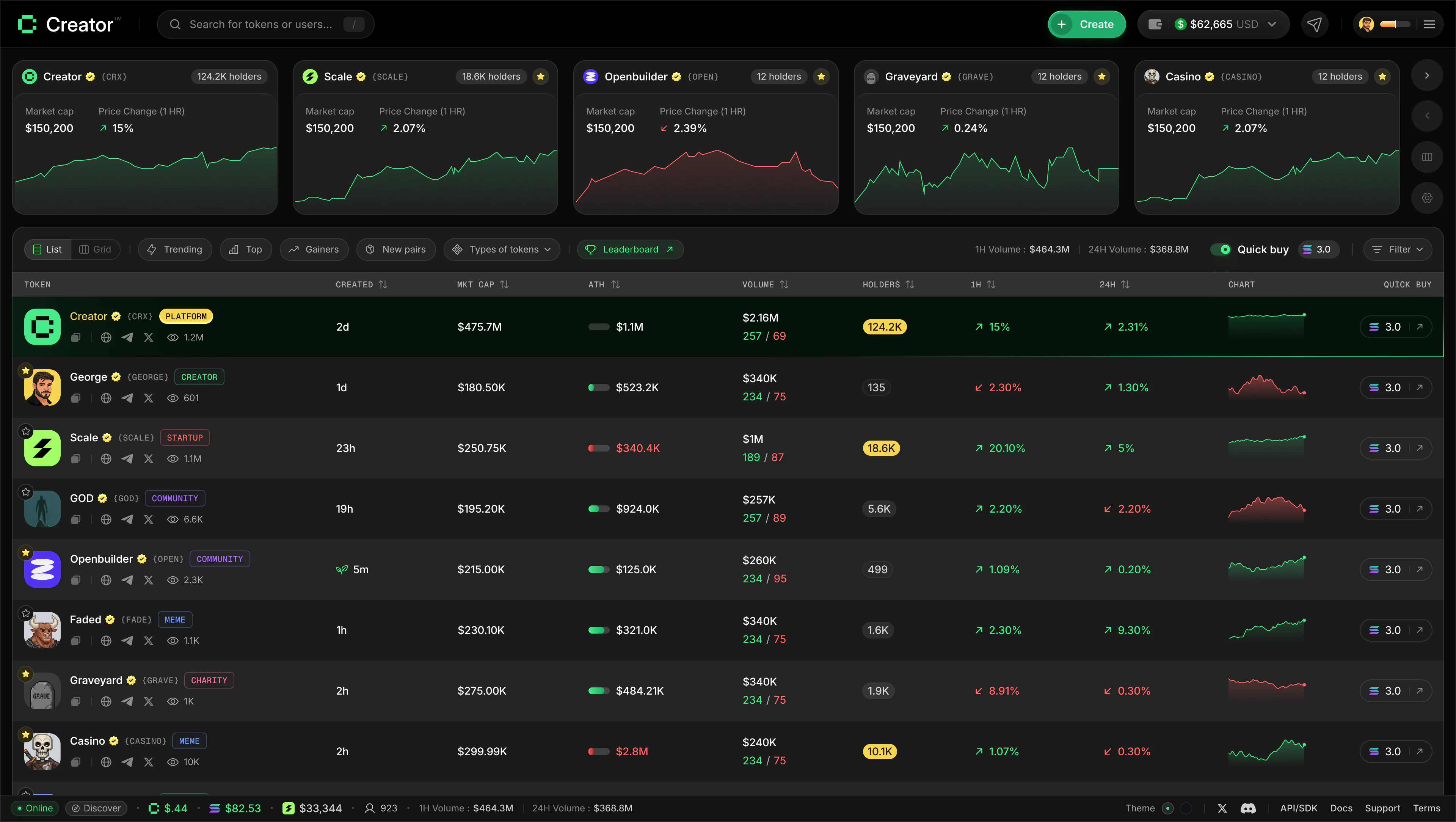
Quick Buy lets you purchase any creator coin with a single click directly from the dashboard — no need to open the token details page first. You set your preferred SOL amount once in the filter bar, then every token card on the dashboard becomes an instant-buy button.
There is also a **Quick Buy / Quick Sell** button inside the trade panel on each token's details page. That button is covered in the [How to Trade](/trading/how-to-trade) guide. This page focuses on the dashboard Quick Buy feature.
 Quick Buy executes your trade **immediately** with no confirmation dialog. The moment you click a token card while Quick Buy is enabled, the transaction is submitted on-chain. Make sure you have set an amount you are comfortable spending before enabling it.
***
## Enabling Quick Buy from the dashboard
Navigate to the main dashboard at [app.creator.fun/dashboard](https://app.creator.fun/dashboard). You will see the filter bar running across the top of the token list.
On the right side of the filter bar you will see a **Quick buy** label next to a toggle switch. Click the toggle to turn Quick Buy on. The toggle lights up when it is active.
Once the toggle is on, a small input field appears next to it showing a SOL amount (defaulting to 3.0 SOL if you have never changed it). Click into the field and type the amount of SOL you want to spend each time you quick-buy a token.
The input accepts values between **0.001 SOL** and **100 SOL**. If you enter a value outside this range it will be automatically clamped to the nearest valid value when you leave the field.
Start with a small amount — like 0.1 or 0.5 SOL — until you are comfortable with how Quick Buy works. You can always increase it later. Because there is no confirmation step, setting a conservative default protects you from accidentally spending more than you intended.
With Quick Buy enabled, every token card on the dashboard has a buy action attached to it. Click any token card and Creator.fun will immediately submit a buy transaction for your configured SOL amount on that token.
A toast notification appears confirming the trade, showing how many tokens you received in exchange for your SOL.
When you are finished buying, click the toggle again to turn Quick Buy off. Token cards return to their normal navigation behaviour — clicking them opens the token details page instead of executing a trade.
***
## Quick Buy on the token details page
The **Quick Buy** button also appears inside the trade panel on each token's details page. It works the same way as a standard buy — you enter your amount, review the estimated output, and click the button to execute immediately. See [How to Trade](/trading/how-to-trade) for the full walkthrough.
The difference between the two:
| | Dashboard Quick Buy | Trade panel Quick Buy |
| ---------------- | --------------------------- | --------------------------------- |
| **Where** | Dashboard filter bar | Token details page, right sidebar |
| **Setup** | Toggle on + set amount once | Enter amount each time |
| **Trigger** | Click a token card | Click the Quick Buy button |
| **Confirmation** | None | None |
***
## Things to know
* Quick Buy only supports buying. To sell, go to the token details page and use the trade panel.
* Your Quick Buy amount is saved between sessions — you do not need to re-enter it each time you visit.
* Quick Buy is only available on desktop at the top filter bar. On mobile it appears in a second row below the main filters.
* Each Quick Buy purchase is an on-chain transaction. Normal Solana network conditions apply, including potential transaction failures if the network is congested.
Quick Buy executes your trade **immediately** with no confirmation dialog. The moment you click a token card while Quick Buy is enabled, the transaction is submitted on-chain. Make sure you have set an amount you are comfortable spending before enabling it.
***
## Enabling Quick Buy from the dashboard
Navigate to the main dashboard at [app.creator.fun/dashboard](https://app.creator.fun/dashboard). You will see the filter bar running across the top of the token list.
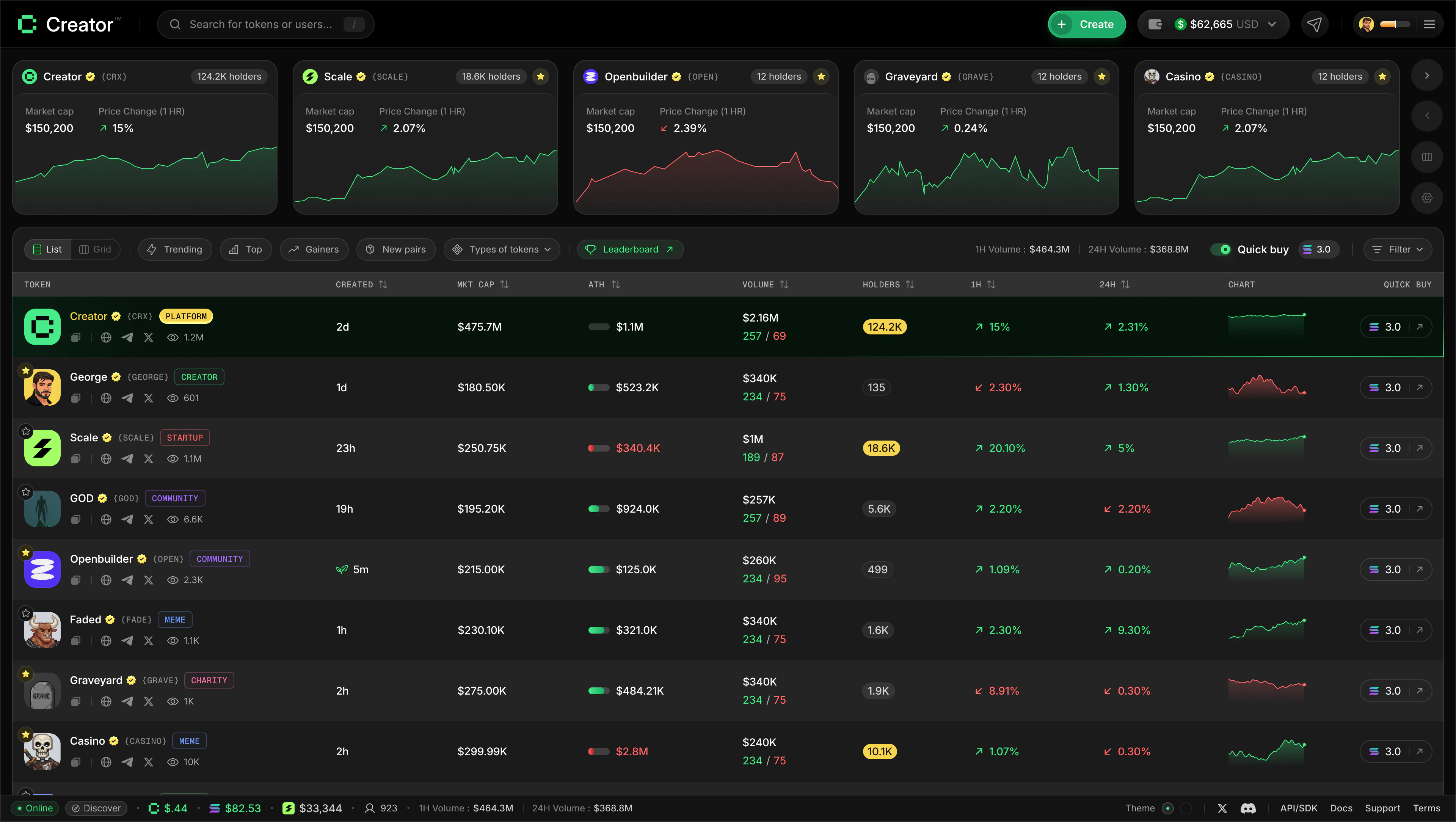
On the right side of the filter bar you will see a **Quick buy** label next to a toggle switch. Click the toggle to turn Quick Buy on. The toggle lights up when it is active.
Once the toggle is on, a small input field appears next to it showing a SOL amount (defaulting to 3.0 SOL if you have never changed it). Click into the field and type the amount of SOL you want to spend each time you quick-buy a token.
The input accepts values between **0.001 SOL** and **100 SOL**. If you enter a value outside this range it will be automatically clamped to the nearest valid value when you leave the field.
Start with a small amount — like 0.1 or 0.5 SOL — until you are comfortable with how Quick Buy works. You can always increase it later. Because there is no confirmation step, setting a conservative default protects you from accidentally spending more than you intended.
With Quick Buy enabled, every token card on the dashboard has a buy action attached to it. Click any token card and Creator.fun will immediately submit a buy transaction for your configured SOL amount on that token.
A toast notification appears confirming the trade, showing how many tokens you received in exchange for your SOL.
When you are finished buying, click the toggle again to turn Quick Buy off. Token cards return to their normal navigation behaviour — clicking them opens the token details page instead of executing a trade.
***
## Quick Buy on the token details page
The **Quick Buy** button also appears inside the trade panel on each token's details page. It works the same way as a standard buy — you enter your amount, review the estimated output, and click the button to execute immediately. See [How to Trade](/trading/how-to-trade) for the full walkthrough.
The difference between the two:
| | Dashboard Quick Buy | Trade panel Quick Buy |
| ---------------- | --------------------------- | --------------------------------- |
| **Where** | Dashboard filter bar | Token details page, right sidebar |
| **Setup** | Toggle on + set amount once | Enter amount each time |
| **Trigger** | Click a token card | Click the Quick Buy button |
| **Confirmation** | None | None |
***
## Things to know
* Quick Buy only supports buying. To sell, go to the token details page and use the trade panel.
* Your Quick Buy amount is saved between sessions — you do not need to re-enter it each time you visit.
* Quick Buy is only available on desktop at the top filter bar. On mobile it appears in a second row below the main filters.
* Each Quick Buy purchase is an on-chain transaction. Normal Solana network conditions apply, including potential transaction failures if the network is congested.