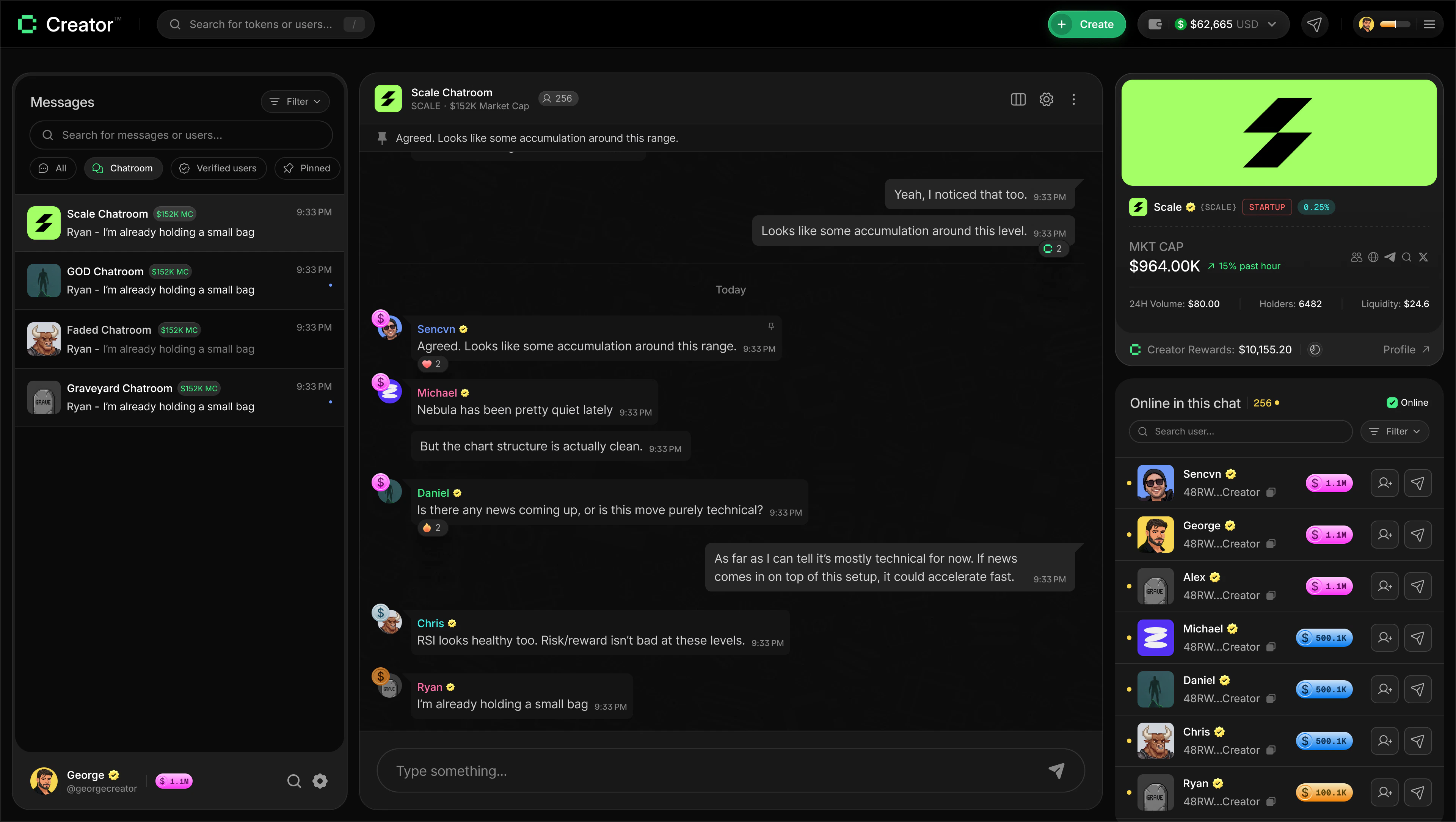
You must be signed in to send or receive any messages. If you aren’t logged in, the Chat page will prompt you to sign in before you can access any conversations.
- Left panel — your conversations list, showing both direct messages and chatrooms you’ve joined, with filters and search.
- Center panel — the active chat, where messages appear and you can type your reply.
- Right panel — details about the person or chatroom you have open, including token stats for chatrooms.
- Direct Messages
- Token Chatrooms
Direct messages
Direct messages let you have a private, one-on-one conversation with any user on the platform. Your full message history is saved, and you can search across all your past conversations using the search bar in the left panel.Filtering your inbox
The left panel gives you four quick filters to cut through noise in a busy inbox:- All — every conversation in one view.
- Chatroom — only token chatrooms, no DMs.
- Verified users — direct messages from verified creators only.
- Pinned — conversations you’ve pinned to the top.
How to send a direct message
1
Open the Chat page
Click Chat in the main navigation. The left panel shows your existing conversations.
2
Switch to User Search
At the top of the left panel, toggle to User Search. A search interface opens in the center panel where you can discover other users.
3
Find the person you want to message
Type a username into the search bar, or use the filter pills — Trending, New, Top Traders, Verified — to browse users. You can also apply advanced filters for wallet balance, trading volume, and Creator Rank to find specific people.
4
Open the conversation
Click a user from the results. Their conversation thread opens in the center panel and a new direct message thread appears in your left panel list.
5
Type and send your message
Click the message input at the bottom of the center panel, type your message, and press Enter or click the send button.
Managing direct messages
Hover over any conversation in the left panel to reveal quick actions:- Pin — keeps the conversation at the top of your list.
- Delete — removes the conversation from your list.
- Unblock — if you previously blocked a user, this restores the thread.

Creating a chatroom
If you’ve launched a creator coin on Creator.fun, you can create a dedicated chatroom for your holders. There’s no chatroom until you set one up, so creating one is how you open up your community space.1
Go to your token's details page
Navigate to your own token’s details page. You can find it from your profile or by searching on the dashboard.
2
Find the chatroom section
Scroll down to the chatroom card on your token’s details page. Instead of a Join button, you’ll see a Create Chatroom button because you’re the token creator.
3
Create the chatroom
Click Create Chatroom and follow the setup dialog. Once created, the chatroom becomes visible to all your token holders, who can join directly from this same card.
4
Manage your chatroom
As the creator and admin, you have extra controls in the chat header: a Settings icon lets you manage the room, and you can pin messages, mute users, or remove people from the chatroom as needed.
Who can see my chatroom?
Who can see my chatroom?
Only users who hold your token can join and participate. Anyone who doesn’t hold a token will see a locked state on the chatroom card. Once they buy the token, they can join.
What can I do as chatroom admin?
What can I do as chatroom admin?
As the creator, you’re automatically the admin of your chatroom. You can pin messages to highlight important announcements, mute disruptive users, ban users from the room, and delete messages. You’ll find these options in the per-message action menu and in the room settings panel.
Can I have more than one chatroom?
Can I have more than one chatroom?
Each token has one chatroom. If you’ve launched multiple tokens, each one can have its own separate chatroom.
Navigating on mobile
On mobile, the three-panel layout collapses into a single view that you tap between. The app always opens to the panel that makes the most sense for your current state:- If you haven’t selected a conversation, you land on the conversations list (the left panel).
- Tap any conversation to move to the chat view (the center panel) and read or send messages.
- Tap the name or avatar at the top of a chat to open the details panel (the right panel), which shows user or token information.
- Use the back arrow in the chat header to return to your conversations list at any time.