/details/<token-address>. This is where you can read the full picture of a token: its price history, market stats, who holds it, who is trading it, and your own position.
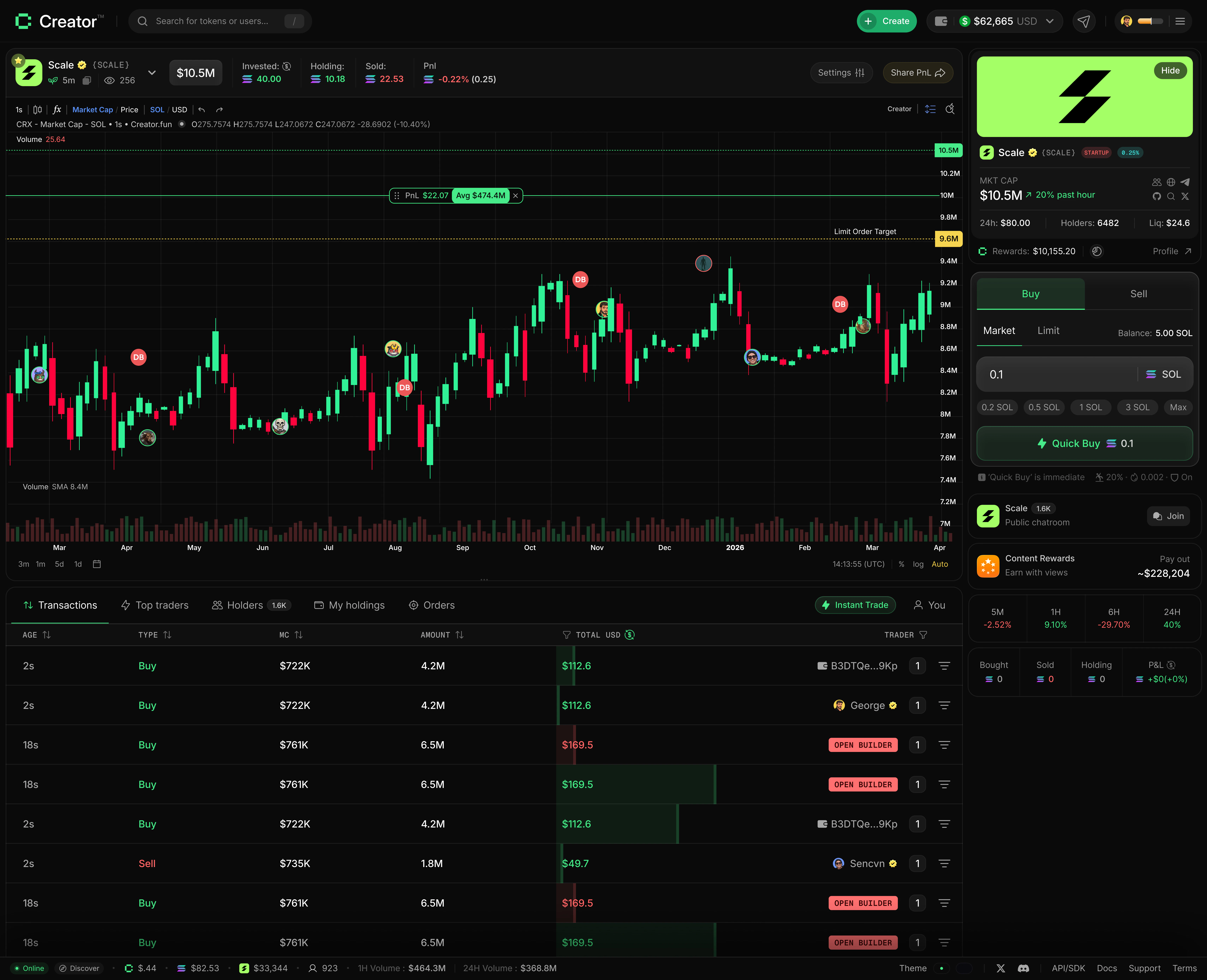
Page layout
The page has two main areas side by side on desktop:- Left side — the price chart and activity tables
- Right side — the token info panel and trade form (sidebar)
Token header and stats
The sidebar at the top of the right panel shows the token’s identity and key market data at a glance.
If the token has a banner image, it appears at the top of the sidebar. You can hide it by clicking Hide, and bring it back later using the eye icon.
Action icons in the header let you:
- Share the token page link
- Visit the website (if the creator set one)
- View on Orb Scan (the on-chain explorer)
- Open the creator’s X/Twitter profile (if linked)
Price chart
The chart shows candlestick price data powered by a live WebSocket connection, so candles update in real time as trades come in.-1.jpg?fit=max&auto=format&n=TIvNAbBSLE6EOVDb&q=85&s=27f1493cc61900128beadd5a3b65b465)
.jpg?fit=max&auto=format&n=TIvNAbBSLE6EOVDb&q=85&s=9301f80674182cc752afb21e1a5354ef)
Activity tabs
Below the chart on desktop (and in the Activity tab on mobile), four tabs give you different views into token activity.- Transactions
- Top Traders
- Holders
- My Holdings
The Transactions tab shows a live stream of every buy and sell for this token, updated in real time via WebSocket. Each row includes:
- Age — how long ago the transaction happened
- Type — BUY (green) or SELL (red)
- MC — market cap at the time of the transaction
- Amount — number of tokens bought or sold
- Total USD — the USD value of the trade, shown alongside the SOL equivalent with a color-coded bar indicating trade size