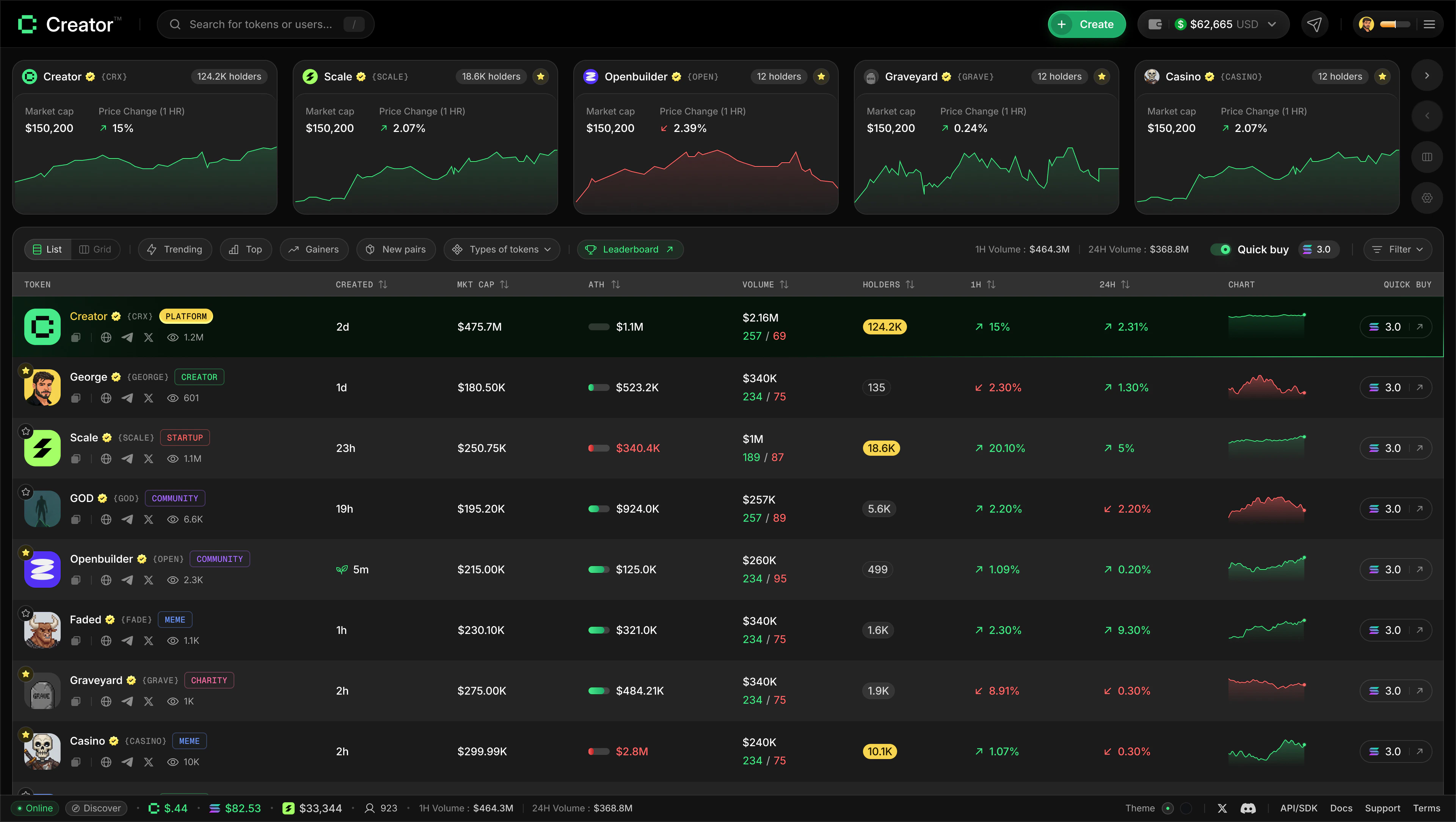
Favorited tokens
If you have added any tokens to your watchlist, they appear as cards pinned to the top of the dashboard, above the main feed. Each card shows:- Token name, ticker, and avatar
- Current market cap
- 1-hour price change percentage with a color-coded indicator (green for up, red for down)
- A mini performance chart for quick visual context
- Holder count
Filter bar
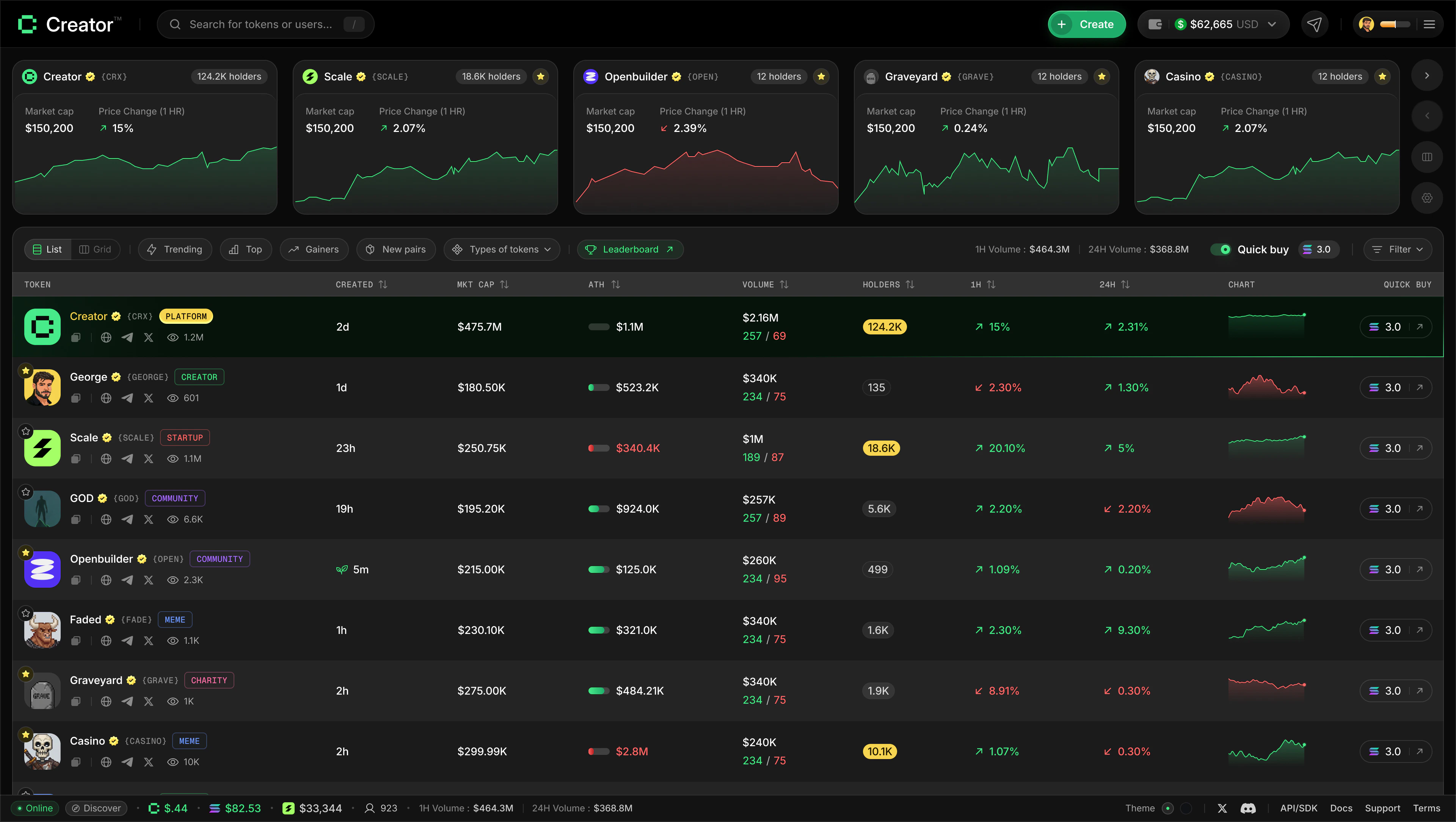
The filter bar sits between the favorited cards and the token feed. It gives you quick access to sorting presets, token type filters, and view controls.-1.jpg?fit=max&auto=format&n=nJPTzLUcu31CkYjZ&q=85&s=67a6aa57bfa4f107ec9818620dfcbe34)
.jpg?fit=max&auto=format&n=nJPTzLUcu31CkYjZ&q=85&s=3356bafed09c2a5e2657dd9c9dcf97f2)
Sort presets
Four preset tabs let you sort the token feed instantly:
Click a tab to apply it. Click it again to clear the sort and return to the default feed.
Token type filter
Click Types of Tokens to open a filter picker and narrow the feed to specific categories:- Creator — coins launched by individual creators tied to their personal brand
- Meme — community-driven meme coins
- Community — coins built around a group, movement, or shared interest
- AI — tokens related to AI projects or tooling
- Utility — tokens with a defined in-platform use case
- Influencer — coins launched by or associated with public figures
- Gaming — tokens tied to games or gaming communities
- App — tokens representing applications or products
Volume stats
On the right side of the filter bar (desktop only), you can see platform-wide volume at a glance:- 1H Volume — total trading volume across all tokens in the past hour
- 24H Volume — total trading volume across all tokens in the past 24 hours
List view vs. grid view
Use the toggle on the left side of the filter bar to switch between two display modes.- Grid view
- List view
Grid view shows tokens in a three-column layout on desktop (one column on mobile), grouped into three status categories:
- New — recently launched tokens still in early price discovery
- Graduating — tokens approaching the graduation threshold
- Graduated — tokens that have graduated to a full liquidity pool
On mobile, the grid view shows one category tab at a time (New, Graduating, or Graduated). Tap the tab bar at the top of the feed to switch between categories.
Quick Buy
Quick Buy lets you purchase a token with a single click directly from the dashboard, without opening the token details page.1
Enable Quick Buy
Find the Quick buy toggle in the right side of the filter bar and switch it on. A SOL amount input appears next to the toggle.
2
Set your buy amount
Type the amount of SOL you want to spend per purchase. The minimum is 0.001 SOL and the maximum is 100 SOL. Your amount is saved until you change it.
3
Click a coin card to buy
With Quick Buy enabled, a buy button appears on each token card. Click it to instantly submit a buy transaction for that token using the SOL amount you set. The transaction goes straight to the blockchain — no confirmation screen.